GPS Coordinates in Address Bar

Koren Heron

CoCam Community Legend
Sep 9, 2026
3
0
I have projects that are gps specific. I can not seem to add gps into the address bar when creating a project.
The work around to do this is quite clunky and is not a great work around as my locations are utility poles.
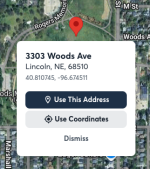
Also the address popup covers the positions and can not be moved out of the way unless I move the pin.
Using cross streets and nearby addresses is not always feasible as many poles are no where near cross streets or addresses.

Our crews would greatly appreciate a fix.
 
Hey Koren! Good news, this one's already live. 🙂

You can drop a pin right on the utility pole and skip the address search entirely. If we can't resolve the pin to a real street address, we'll offer you the GPS coordinates as the address instead, and this also works now even on projects that already have an address, if you'd rather swap it for coordinates. No more hunting for cross streets that don't exist.

Here's the full walkthrough: Creating a Project without a Street Address

On the pop-up covering the pin position, that one's not on our radar yet, so thank you for calling it out. If it's still giving you trouble, a screenshot or two of exactly where it's blocking your view would help the team a ton.

1789492365024.png
 
Upvote 0
Hi!

Thank you for getting back to me.
I think that perhaps I did not clearly explain.
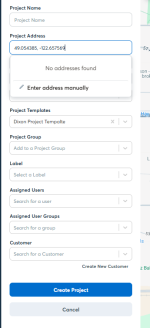
Often, we receive the GPS coordinates sans address. When I drop them into the address bar, I get a pop up that says address not found.
I then have to leave CompanyCam and go directly into google maps to drop in the coordinates to bring up nearby addresses and then can go back into CompanyCam and put the nearby location in. Then I have to fiddle around with the pin to get it as close to the GPS I have been provided. (which is why that pop up is so annoying as I have to move it aside multiple times just to see the pole I'm trying to mark).
We do not typically create jobs in the field, it is all done in office.
I don't feel I should have to leave CompanyCam to get GPS location added. It's clunky.
1789493608333.png
 
Upvote 0
Thanks for the extra detail, that helps a lot.

Since you're working from coordinates with no address to search for, skip the address search bar entirely. When you're creating the project, click Enter address manually below No addresses found. That opens a plain text address form with no autocomplete fighting you, so you can paste the coordinates straight in as the address and save. No pin-dragging, and you don't have to leave CompanyCam to find an address close to the GPS coordinates you're trying to work with.

Give that a shot and let us know if it gets you where you need to be!
 
Upvote 0
Hi Shayla,

This doesn't work.
It doesn't populate the job on the map.
Also when I click on the coordinates in the project is just pulls up a general Google Map that is near my location and no where near the actual project location.

Guys use the map in the field to bring up jobs they are near and get the correct job number to put their time to - photos to.

Example, the location I used has 2 other projects for two different clients that are all working on the same project but different phases. The correct photos need to go to the correct clients. If the project doesn't populate, the final as builts/photos, billing will all be off.
 
Upvote 0