Pro Tip: Ever find yourself wondering what's new in CompanyCam?

We ship updates constantly- new features, fixes, and improvements- and it's easy to miss one if you're not looking for it. The News Center is where we post everything as soon as it goes live, so you don't have to dig through release notes or wait to hear about it secondhand.

Bookmark it, check back every so often, and you'll always know what's changed before it surprises you mid-job.

CompanyCam News Center
  • Like
Reactions: Megan M.

Create a Daily Field Update advanced checklist automatically when a crew member clocks in on a project

Feature Request: Create a Daily Field Update advanced checklist automatically when a crew member clocks in on a project

I would like to request a workflow improvement for field crews using CompanyCam on active jobs.

A useful feature would be the ability to trigger a Daily Field Update advanced checklist automatically when a crew member clocks in on a project.

Requested workflow​

  • Crew member clocks in on a project
  • CompanyCam automatically creates a Daily Field Update advanced checklist instance on that project
  • The checklist is prefilled with project name, date, crew member name, and clock-in time
  • At the end of the visit, the crew completes prompted fields for work completed, materials used, materials required, client changes or requests, tools or subcontractors needed, blockers, and next steps

Why this matters​

Our crews work much better from prompted lists than from open-ended note writing. If the checklist appears automatically when they clock in, adoption would be much higher and field reporting would be more complete and consistent.

  • Improves daily field documentation
  • Creates a clean place to capture materials used and materials still needed
  • Makes outstanding work easier to track
  • Reduces missed notes and duplicate entry
  • Connects labor activity directly to field reporting

Additional request​

It would also be valuable if time data could automatically flow into the checklist or into a client-facing daily report generated from that checklist.

  • Clock-in time prefilled
  • Clock-out time available at completion
  • Hours for the visit calculated automatically
  • Crew members on site tied to the checklist record
For field teams, this would make advanced checklists much more practical as a real daily workflow tool rather than something the office has to chase after the fact.

As always if there is already a function that you can suggest that already does this I would love to hear about it! Thanks!
Hello! Thank you so much for sharing this detailed feedback. I'm Ana by the way, Product Manager working on Checklists. Your workflow makes a lot of sense. I do have a follow up question - when the crew member is done with the visit how would you expect them to be prompted to complete the checklist? Perhaps when they attempt to clock out? A reminder is sent after certain amount of time? Something else?
  • Like
Reactions: Megan M.
Upvote 0

Can we get the time clock to clock more than 12hrs

Hey there, thanks for flagging this!

Quick context on what you're running into: right now, a single shift caps out at 12 hours. That's an intentional guardrail so a timer someone forgets to stop doesn't turn into a 40-hour shift on your payroll report, but you're not the only crew telling us 12 isn't enough for the way they actually work.

Good news: our team is already revisiting that limit, and we've added you to the feature request ticket so you'll stay in the loop as it moves. No timeline to promise yet, but this is on the radar.

In the meantime, here's the workaround so nobody loses hours: log the day as two shifts instead of one — say 6am–4pm and 4pm–8pm. An Admin or Manager can create and edit those entries from the Time Tracking page on the web app, and they'll roll up into the same timesheet and the same CSV export at the end of the week. Same total hours, same Project, just split across two entries.

Appreciate you taking the time to post this. Keep 'em coming! 🔨
Upvote 0

Feature Request: Templated Project Tasks

Hey there! Great idea! 🙌

Right now, Tasks can't be saved as a Template, so they won't auto-populate on a new Project. But here's the good news: there's a workaround that gets you most of the way there today, and it's actually a little more powerful for repeatable job steps.

Build your task list as a Checklist Template, then drop it into a Project Template:
  1. In a Project, build out your standard list of to-dos as a Checklist, then hit the ••• menu → Save Checklist as Template.
  2. Head to Templates in the left-hand nav → Projects tab → + Create Project Template.
  3. Add that Checklist Template (plus any Labels, Report Templates, Pages, or Project Files you always need) and click Add to Project Template.
  4. Then, if you really want to level up your setup — click the ••• on that Project Template and choose Set as Default Template. Now every new Project you create starts with your standard list already loaded. No picking, no rebuilding. ✅
Checklists also give you tracking that Tasks don't: completion percentage, who checked off what and when, required photos per step, and a company-wide checklist feed so you can see progress across every active job without calling anybody. Heads up — Templates are only available with certain features, and editing requires an Admin or Manager role. Full walkthroughs here: Project Templates and Checklist Templates.

That said, templated Tasks specifically is a request we've heard, and we have a feature request logged for it. I'll be sure to check back here if there's any progress made on this request!

Thank you for taking the time to share this with us!
Upvote 0

Pictures in project gallery need to be numbered

Hey there! 👋 Thanks so much for your feedback! Numbered photos in the Project photo gallery aren't something we offer currently, but there are a few ways to nail down exactly which photo you mean right now:

Comment right on the photo. Instead of describing which photo, open it, drop a comment, and @mention your teammate. They get a notification that takes them straight to that photo, and the conversation stays attached. No numbering needed.

Share the single photo. Open the photo → Three Dots → Share. This sends them to that one shot instead of the whole Project.

Tag them. Tag the photos you're discussing, then filter the gallery down to just those. That can turn "somewhere in these 200 photos" into a handful.

One nice bonus: photos are numbered in Documents, and those numbers carry over to the PDF. So if you're walking someone through a set of photos, building a quick Page and sending the link gives you real numbers to point at.

Passing your request along to the product team either way! Feedback like this is what helps shape what gets built next. Thanks for taking the time to write it up! 🙏
Upvote 0

Feature Request: Custom Role Permissions

This is exactly the detail I was hoping for, thank you for laying it out so clearly!

A couple of things I can speak to directly:

On checklists: what you're running into matches how it works today. Admins and Managers can create, edit, delete, and duplicate checklists and fields, but Standard and Restricted users can only edit fields on checklists they personally created. So once you moved your crew leads down to Standard, that ability went with it. There's a full breakdown of what each role can and can't do here if it's helpful: https://help.companycam.com/en/articles/14010242-permission-roles-explained.
I hear you on wanting more granularity between "Standard" and "Manager minus notifications," and that's genuinely useful context for us as we think through where role permissions could flex more.

On notifications: this one's real too. Right now, proposal and payment notifications go out to anyone with Manager or Admin, plus whoever's assigned to the project, and there's no per-user control to turn that off. I don't want you exposing payment info outside your business email ecosystem any more than you do, so I've gotten this in front of the team that owns notifications.

No promises on timing for either one, but this is a really clear, well-reasoned writeup and it's the kind of thing that makes a difference when we're prioritizing what to fix next.

If you have additional thoughts after checking out that permission roles article, let me know. Thanks again for taking the time!
  • Like
Reactions: Emberton Electrical
Upvote 0

Admin Notifications when Checklists are completed

Hi @ananas, Thank you for your response!

1. Yes, A completed checklist is 100% of all fields completed.

2. In an ideal world I could designate who gets notified based on who is completing the checklist perhaps from groups or some other hierarchy, so the appropriate PM gets the notification. However, yes, just a simple push notification to all admin/manager when a checklist is completed would be a great place to start. Another option would be to perhaps have an option to ask the user if they want to send to another user in our list.

Email notification would be a helpful option. I would not use text option in my organization.

I attached a screenshot of the prior system we used so you can see an example of all the choices we have. (Obviously that system has different data sets that yours does, so no expectations based on that.)

3. One other suggestion in the checklist arena: When you are viewing a checklist, you cannot scroll left or right to view the included pictures like you can in a gallery. It would be a time saver to be able to scroll through them from the report. Since the photos are in the gallery, I go there to see them but it would be nice to scan them from inside the report.

Thank you for your help! I hope some of these suggestions can be implemented.

Attachments

  • Screenshot 2026-09-03 144437.png
    Screenshot 2026-09-03 144437.png
    53.8 KB · Views: 1
Upvote 0

Creating multiple tags at once

Hey there! Thank you for the kind words about CompanyCam! 🙌

Great news: There's a way to do this now! While there isn't a way to paste a comma-separated list into the app currently, our Support team can run a bulk Tag import for you.

Here's how it works: reach out to Support (support@companycam.com) and let them know you'd like to bulk import tags. They'll send you a simple spreadsheet template, you fill it in with your tag list, send it back as a .csv, and they'll load them into your account for you. Refresh your browser afterward and your whole set is there and ready to use.

One nice thing: the importer skips duplicates, so if you already created some of those Tags by hand on your account, they won't get doubled up.

Appreciate you taking the time to write it up!
Upvote 0

Photo-mode Lock capability

Hey Zach, thanks for sharing your feedback!

We can totally see how this feature would help when you're working in tight spaces, up on ladders, or shooting one-handed at an awkward angle. A stray thumb flips you into Video and you don't notice until you've missed the shot. 😩

Right now there isn't a way to lock the camera to Photo mode, but I've passed this along to our product team so it's in front of the folks making those calls. Wishlist posts like this help shape what gets prioritized, so thank you for taking the time to write it up.

In the meantime, two things that might help:

Open straight to Camera View. You can set the app to launch straight into the camera instead of the home screen, so even when you lock your screen and aren't using the app, it will always open back up in Photo mode. Here's how.

If you're on an iPhone 16 or newer, use the Camera Control button. The Camera Control button on newer iPhones is compatible with the app. A single press on that side button fires the shutter, so you can shoot without touching the screen at all:
  1. Double-tap the Camera Control button to open the camera settings overlay.
  2. With the overlay open, double-tap the Camera Control button again to switch between Zoom and Exposure.
  3. Slide up or down on the Camera Control button to adjust the selected setting.
  4. Single-tap the Camera Control button to take a photo.
Neither is the lock you asked for, I know. But hopefully they cut down on the re-switching for now. Keep the requests coming! 🔨
Upvote 0

Reports - active working window - increase editing window size - web app

Hey there! 👋

This is a great write-up! Thanks so much for the detail on everything you're looking for in a reporting tool.

Good news: most of what you're describing already exists with Documents. Here's what that gets you right now:

📄 One continuous, scrollable document instead of editing a section at a time. Preceding and following content stays visible while you work.
📐 Page breaks shown right in the editor, so you can see exactly where content lands on the page without previewing or downloading a PDF. Review your layout, spacing, and flow live as you type.
🧭 A Table of Contents down the side for jumping around a long report instead of scrolling to find your place.
🎨 Branded headers and footers, cover pages, section breaks, and flexible photo + text blocks so a 40-page inspection report holds its formatting.

Two things worth flagging so you're not surprised: there isn't a dedicated full-screen editing mode at the moment, and Documents don't support multiple people editing at the same time, so it's best to have one person driving at a time.

I'll share our help articles on how to create Documents and how to edit them.

Give the Documents a try and let us know what you think!
Upvote 0

DRAG/SLIDE TO SELCT PHOTOS FEATURE IOS

Hey there! First off, thank you for the kind words! Glad the updates have been landing well for you. 🙌

You're not wrong, and you're not alone. Selecting photos one at a time from the camera roll is a real pinch point, and we've already got a feature request logged for drag-to-select on iOS. It's on the product team's radar, so this post is more fuel for it. I'll keep an eye on it and circle back here if it comes to life.

In the meantime, two things that might help:

1. Go the other direction with the share sheet. Instead of starting in CompanyCam, open your iPhone's Photos app, use Apple's drag-to-select, tap Share, and pick CompanyCam. You'll pick your Project on the way in. It's capped at 10 photos and 5 videos per batch, but you get the sliding select you're after.

2. Try the Magic Uploader. If the photos are all from the same jobsite, Magic Uploader will scan your camera roll and pull the photos taken at that location — no tapping at all.

Here's the full walkthrough for both: https://help.companycam.com/en/articles/6828411-upload-existing-photos

Keep the ideas coming! 📸
Upvote 0

Tagging Groups in Tasks

Hey there!

Thanks so much for the feedback! We totally understand how not being able to assign Groups to Tasks could slow you down when organizing your jobs. We've shared this with our Product team, so it's officially on their radar. We can't make any promises, but requests like yours help shape what we build next.

In the meantime, a couple of workarounds that get you close:
  • Assign the Group to the Project — everyone in it gets notified and lands right on the job. Then create the Task so the whole crew sees it in the Tasks list.
  • @mention the Group in the Project Conversation with a quick "new task added for the install crew 👀" — that pings everyone at once and keeps the task itself as the source of truth.
  • If a Task needs owners, you can add several Users to it at a time — a bit more clicking, but it does notify each one.
Thanks for taking the time to write this up. Keep 'em coming! 🔨
Upvote 0

Auto Generate Project Numbers

Hey Alex! 👋 Great callout! We can totally see how helpful an auto-generated Project number would be helpful when you're juggling multiple jobs for the same client.

This isn't something CompanyCam supports today. Project creation doesn't include a Project number field, auto-generated or manual. I don't have an ETA or a guarantee that this feature will be developed, but we'll reach back out here if there is an update!

In the meantime, here's a manual workaround many teams use: CompanyCam already assigns every Project a unique ID behind the scenes, so you can use it for your project number! Once you create the Project, the URL will look something like this: https://app.companycam.com/projects/12345678/photos.

That 8-digit number is unique to that Project. Grab it, then rename the Project to include it. Now it's visible right in the Project title and fully searchable in the Project Feed.

We really appreciate you posting this feedback!
Upvote 0

Bulk Remove/Add Contributors with AI Assistant

Hey there, thanks for sharing your feedback about the inconvenience of having to manually swap out Collaborators Project by Project. I can totally see how that would take a lot of time in a situation like the one you described.

While your request isn't available right now, we've logged it as a feature request to invite or remove Collaborators across multiple projects at once, and I've added your feedback to it. Notes like yours help us prioritize what to build next, so thank you for taking the time to share it.

We'll keep this thread posted if that changes!
Upvote 0

Link Google Calendar Events to Existing Projects

Hey! Thanks for sharing how you'd like the Google Calendar integration to work.

Right now, as you mentioned, the Google Calendar integration creates a new CompanyCam project for each synced event rather than matching to one you've already got open, so we hear you on the duplicate headache.

We've already shared your feedback to our integrations team. We can't promise a timeline, but if this becomes an available workflow, we'll be sure to check back with you here.

In the meantime, the current workaround is to create the Project in CompanyCam first, then use the "Send to Google Calendar" button on that project. That pushes a correctly-linked event out to your calendar without creating a duplicate on the way back in. I'll share a link to our Google Calendar integration help article that includes a step-by-step guide on how the integration works: https://help.companycam.com/en/articles/8510093-integrate-companycam-google-calendar

We'll keep this thread in mind as we shape the roadmap. Again, we really appreciate you taking the time to write it up!
Upvote 0

Map filtering by project labels on mobile

Hey Jeremy, thanks for flagging this!

It's totally fair that you'd want this feature in the mobile app so folks in the field have the same map filtering options. It's something our product team is looking into.

We've shared this feedback directly with the team, and we'll circle back here if there's any progress to share. We hear you, and it makes sense that it also lives where most of you actually are: in the truck, on the roof, wherever the job takes you.

Appreciate you taking the time to post. Feedback like this helps us prioritize what's next.
Upvote 0

Ability to Minimize Sidebar on Web App

Hey there! 👋 Thanks for sharing!

We've shared your feedback with our product team and they have been actively talking through options for giving folks more screen real estate on the web app. No firm timeline to share, but this is on their radar, and your post is helping keep it there, so thank you for taking the time to write it up! 🙌

Quick tip in the meantime: if you shrink your browser window a bit narrower, the sidebar will automatically collapse out of the way. It's not a permanent fix, and it might not work if you want to view more photos on the screen, but it's currently the only way to collapse the left navigation bar.

We'll keep this thread in mind as things develop!
Upvote 0

360 Camera Support

Hey there! 👋 Thanks for sharing your feedback!

Here's where things stand today: CompanyCam doesn't have native Bluetooth pairing for 360 cameras like the Insta360, and drawing-set/floor-plan pin mapping for a full 360 walkthrough tour isn't available either. So you're not missing a hidden setting, but we've logged both with our product team as ideas we're aware of. I can't promise development or a timeline, but feedback like this (with a clear use case) helps us prioritize. Thanks for laying out the full workflow!

I'd also recommend keeping an eye on our News Center for product releases: https://intercom.news/companycam

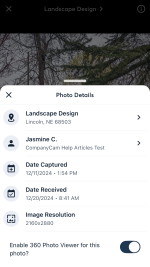
That said, there's good news: depending on your plan, you can upload your Insta360 photos to a CompanyCam project, and our 360 Photo Viewer will display them correctly (no stretching/distortion), so your team can view and interact with them right from the web app.

To enable this for a photo, tap the Info Icon in your Photo Viewer for an individual photo, then toggle on the 360 Photo Viewer. I'll share a screenshot of what that looks like.

Appreciate you walking through your workflow in such detail. Feedback like this is what gets ideas like this moving. 🙌

Attachments

  • IMG_1656.PNG
    IMG_1656.PNG
    460.8 KB · Views: 4
Upvote 0

Filter