360 Camera Support

- By Megan M.
- Product Wishlist
- 1 Replies
Hey there!  Thanks for sharing your feedback!
Here's where things stand today: CompanyCam doesn't have native Bluetooth pairing for 360 cameras like the Insta360, and drawing-set/floor-plan pin mapping for a full 360 walkthrough tour isn't available either. So you're not missing a hidden setting, but we've logged both with our product team as ideas we're aware of. I can't promise development or a timeline, but feedback like this (with a clear use case) helps us prioritize. Thanks for laying out the full workflow!
I'd also recommend keeping an eye on our News Center for product releases: https://intercom.news/companycam
That said, there's good news: depending on your plan, you can upload your Insta360 photos to a CompanyCam project, and our 360 Photo Viewer will display them correctly (no stretching/distortion), so your team can view and interact with them right from the web app.
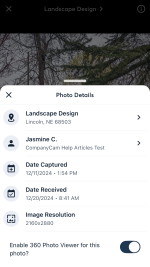
To enable this for a photo, tap the Info Icon in your Photo Viewer for an individual photo, then toggle on the 360 Photo Viewer. I'll share a screenshot of what that looks like.
Appreciate you walking through your workflow in such detail. Feedback like this is what gets ideas like this moving.
Thanks for sharing your feedback!Here's where things stand today: CompanyCam doesn't have native Bluetooth pairing for 360 cameras like the Insta360, and drawing-set/floor-plan pin mapping for a full 360 walkthrough tour isn't available either. So you're not missing a hidden setting, but we've logged both with our product team as ideas we're aware of. I can't promise development or a timeline, but feedback like this (with a clear use case) helps us prioritize. Thanks for laying out the full workflow!
I'd also recommend keeping an eye on our News Center for product releases: https://intercom.news/companycam
That said, there's good news: depending on your plan, you can upload your Insta360 photos to a CompanyCam project, and our 360 Photo Viewer will display them correctly (no stretching/distortion), so your team can view and interact with them right from the web app.
To enable this for a photo, tap the Info Icon in your Photo Viewer for an individual photo, then toggle on the 360 Photo Viewer. I'll share a screenshot of what that looks like.
Appreciate you walking through your workflow in such detail. Feedback like this is what gets ideas like this moving.
Attachments
Upvote
0
 .
.